
MQTT Made Simple: Connecting Your Site to SentryLogic
You may have heard your controls provider or IT team mention “MQTT” and wondered what that actually means for you; or whether it’s something you need to look into further.
Here's the short version:
MQTT is simply a way for two systems to send information back and forth over the internet, in real time, without a lot of extra equipment.
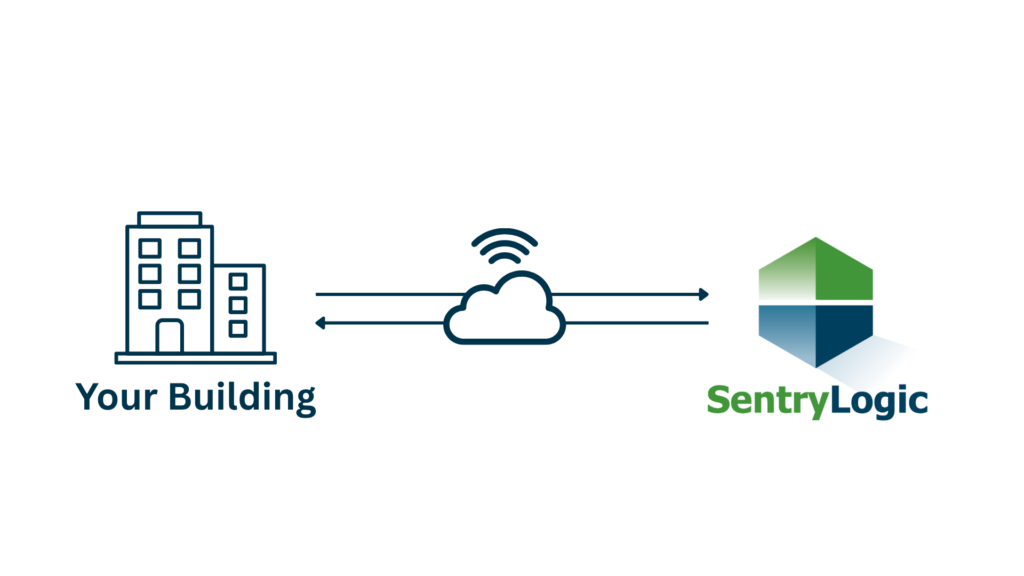
If your Building Automation System (BAS) already runs a modern platform such as:
- Tridium Niagara 4 or 5
- Schneider Electric’s EcoStruxure
- Distech Controls ECLYPSE series
- any other MQTT-capable system
then it can easily connect to SentryLogic and its features.
So you might ask: “What does getting connected actually involve, and do I need to be technical to make it happen?”
Good news! Not at all. Here’s a quick, plain-English look at how it works and what to expect.
The Big Picture
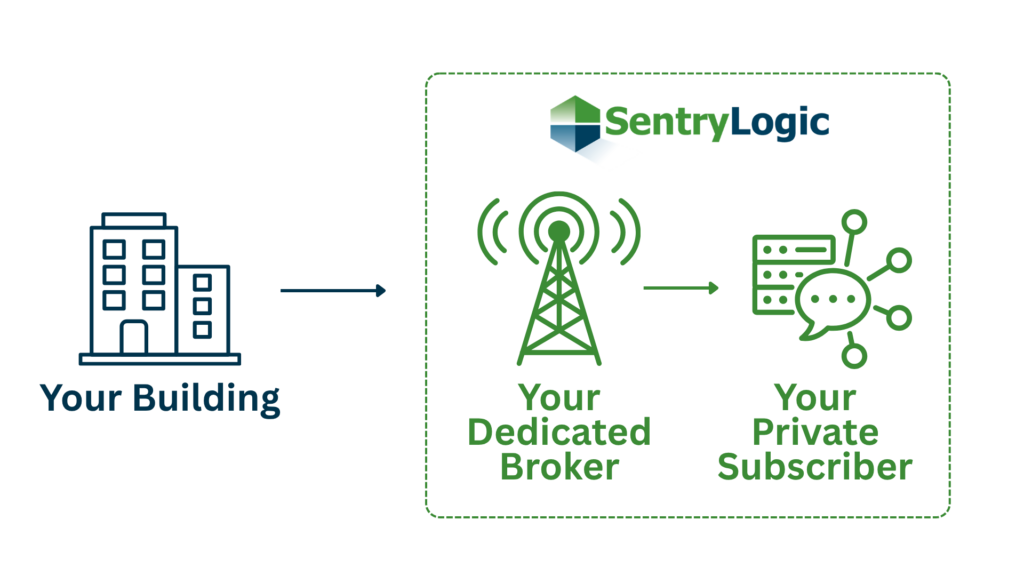
MQTT works more like a radio broadcast than a phone call. There are three main players:
- Publisher – The system sending out information (your building’s automation system)
- Subscriber – The system listening for that information (SentryLogic)
- Broker – The “radio tower” in the middle that receives the information from the Publisher and passes it along to the Subscriber
Information travels under labeled channels called Topics, which act a bit like different radio stations. They keep everything organized. The Subscriber uses Topics to select only the data is listens for from the Broker.
To keep your building’s data private and secure, SentryLogic operates as a Broker dedicated to you, and as a private Subscriber to that data.
What Getting Connected Looks Like
Here’s the general roadmap, so you know what’s happening at each stage:
1. Confirm your Building Automation System supports MQTT. Many modern platforms do. Additionally, some platforms require a separate license just for MQTT, so it might be worth checking your license tier before you start.
2. Find your site’s MQTT credentials. Every SentryLogic site gets a unique Site Serial Number and Site Password, think of them as a username and password for your building. If you created your site through SentryLogic’s self-service registration page, you’ll receive an email with these credentials automatically. Otherwise, reach out to your SentryLogic contact to request them when you’re ready to connect.
3. Configure your system with its own MQTT Client. Here are links to specific steps based on your system:
- Tridium Niagara 4/5 — link needed
- Schneider Electric EcoStruxure — link needed
- Distech Controls ECLYPSE series — link needed
If your system is not one of these, your MQTT Client configuration will be very similar to one of them.
4. Watch your data start flowing in. Once your client is configured with your SentryLogic MQTT credentials, your points show up in SentryLogic automatically, ready for trend charts, dashboards, and reports, just like any other connected device.
By the way! All of our sites come with three complimentary weather data points based on your building’s ZIP code.
5. Let your alarms come along too. If a piece of critical equipment needs attention, that alert can travel the same MQTT connection, so SentryLogic notifies you the same way it does for your other alarms.
A Few Common Questions
Do I need new hardware? No. MQTT runs over your existing network connection. No extra boxes or gateways required.
Will this cost extra? Possibly, depending on your platform. Some systems require a separate license just for MQTT, so it’s worth checking your license tier before you start.
Do I have to configure anything myself? Step 3 walks through configuring your system’s MQTT client directly. If you’d rather someone else handle it, these same steps work for them too.
The Bottom Line
You don’t need to write code or become an MQTT expert to take advantage of this. The steps above walk you through connecting your site directly, and the SentryLogic team is here if you get stuck along the way.
Ready to get your site connected?
to contact us and we’ll walk you through it.